AR glasses compatibility: USB-C, iPhone and HDMI explained
Affiliate disclosure: Links may earn HoloNexa a commission at no extra cost to you.
The short answer: check video output, not the connector
A USB-C socket does not, by itself, prove that a phone or laptop can drive AR display glasses. For a direct wired connection, establish that the source supports the video protocol required by the glasses, that the cable carries video, and that the complete setup supplies the required power. Treat those as separate checks rather than assuming that charging successfully means the picture will work.
VESA identifies DisplayPort over USB-C as a defined alternate mode. In practical buying terms, look for an explicit statement such as DisplayPort over USB-C or DP Alt Mode in the source device’s specifications. A seller’s photograph of the port is not equivalent evidence. This guide concerns wearable external displays, not every product sold under the broad smart-glasses label.
Direct USB-C connections: a useful starting point
XREAL’s One Series connection guide identifies USB-C devices with DisplayPort output as suitable for direct connection using the supplied cable. VITURE likewise maintains a compatibility list for its XR glasses based on DP Alt Mode. Neither statement means every phone with USB-C is supported; identify the exact model, including any budget or regional variant.
For a laptop, check the manual for the specific port you intend to use. If the manufacturer documents video output on one port but only charging or data on another, keep that distinction in your setup notes. When specifications are ambiguous, send support the laptop model number and the proposed glasses model before ordering. Do not substitute a specification from a similarly named machine.
Which iPhones can output video over USB-C?
Apple’s support page currently lists iPhone 15 models, iPhone 16 models except 16e, and iPhone 17 models except 17e for wired external displays through USB-C. It describes DisplayPort output and says external-display behavior normally mirrors the phone, with exceptions for apps offering a second-screen experience. This is evidence about the phone’s video capability, not a guarantee of every glasses feature.
VITURE’s Beast documentation explicitly excludes iPhone 16e and iPhone Air. Do not infer compatibility from the connector or a shared family name. For a Lightning iPhone, Apple documents an appropriate Digital AV adapter path to an HDMI display; connecting onward to glasses still requires a separately verified compatible HDMI-to-glasses arrangement. A simple connector-changing dongle is not a complete compatibility plan.
HDMI adapters: the direction matters
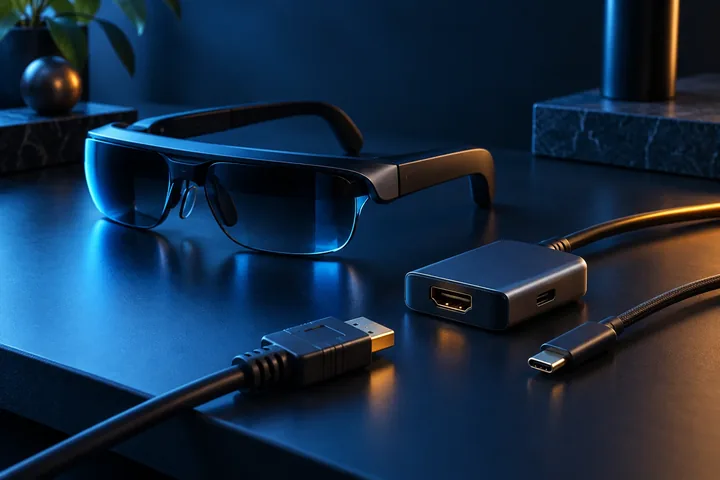
XREAL documents an HDMI-to-USB-C adapter route for One Series glasses and HDMI-equipped gaming systems. That is the direction to verify: video starts at the console or computer and ends at the wearable display. A shopping result described as USB-C to HDMI may describe the opposite job. Ask for explicit support for your source, glasses and intended resolution rather than relying on matching plug shapes.
Before buying, identify the adapter’s power input, supplied cables, firmware requirements and supported display modes. Keep the manufacturer’s connection instructions together with your shopping list. A console dock or converter adds another component that needs verification; compatibility with the console’s television output does not automatically establish compatibility with all wearable displays.
A working picture is not the same as full feature support
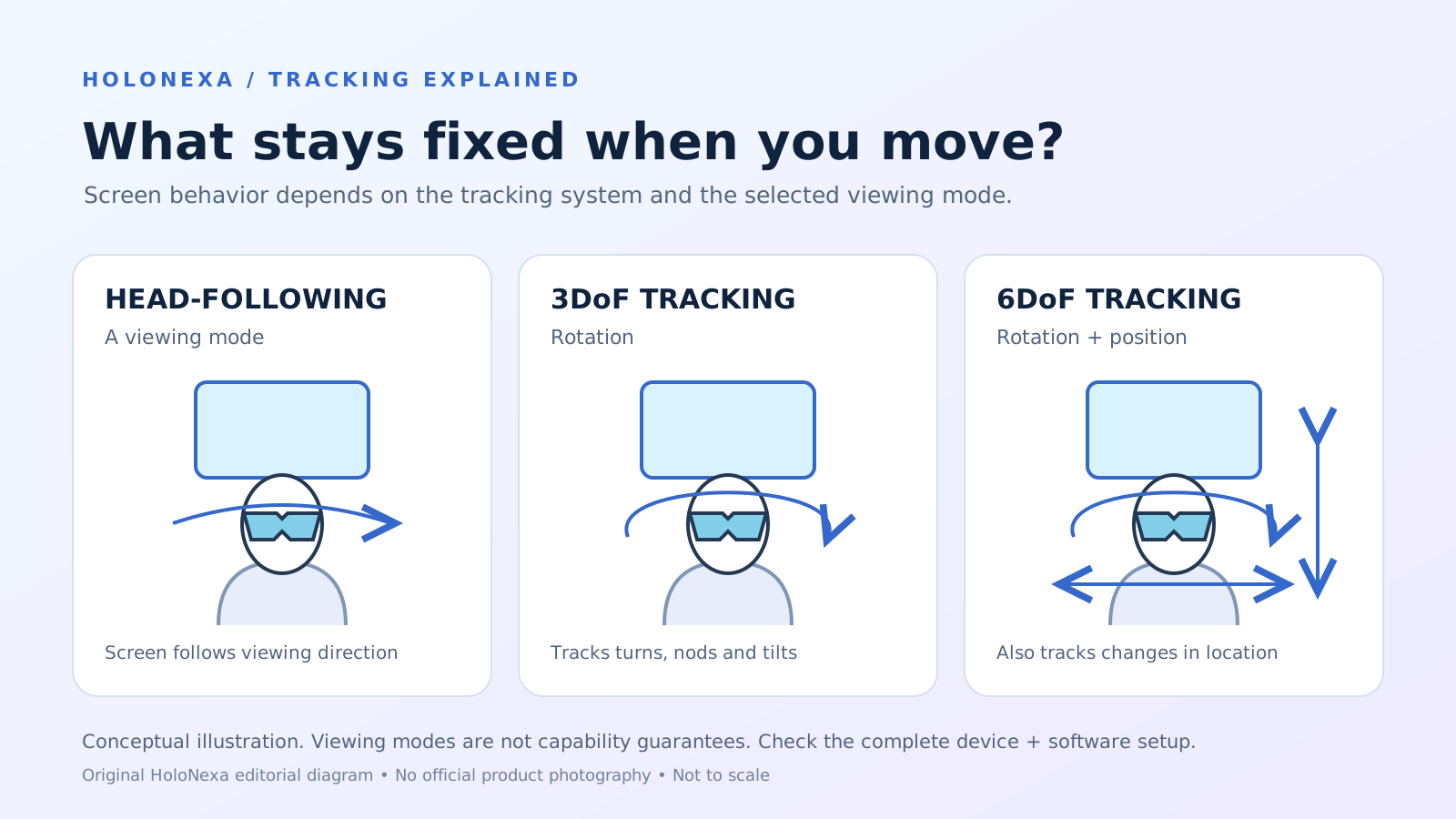
Screen mirroring, an extended desktop, anchored viewing and a multi-window application are different capabilities. VITURE’s Beast documentation separates display formats from positioning modes and describes additional software features through SpaceWalker. Read the feature-specific requirements rather than assuming that a successful cable connection unlocks every spatial tool.
Charging accessories can have their own restrictions. VITURE’s documentation for its USB-C XR Charging Adapter lists Beast support for default-mode mirroring at 60 Hz and charging during playback. Its newer Ultra adapter has a separate compatibility page. Check the exact accessory generation: a brand-wide claim can hide a meaningful limitation for the model you are considering.
Troubleshooting a blank display or black video
Start with the smallest documented connection: the supplied glasses cable, one supported source and no optional hub. Unlock the source and inspect its display settings. VITURE’s Beast instructions suggest trying another USB-C port or disconnecting other external displays when no image appears, noting that some source devices support only one external display. Change one component at a time and record what happens.
If the interface appears but a protected movie does not, investigate the app and content-protection path before concluding that the glasses are defective. Apple’s Digital AV troubleshooting documentation notes that certain video content requires HDCP and can be incompatible with unsuitable connections. This is a diagnostic possibility, not a finding that any particular glasses model fails HDCP. Test the services you actually use within the return period.
Our buying checklist and analysis
Write down six items before paying: the exact source model; its documented video-output capability; the exact glasses model; the approved cable or converter; the power arrangement; and the required app and display mode. Add the cost of every necessary accessory and check local return terms. A lower headline price can be misleading when the compatible setup requires several extra parts.
HoloNexa’s analysis: compatibility is the first purchasing filter, ahead of virtual-screen size or a maximum refresh-rate claim. For travel, prioritize the setup you can reproduce reliably with the phone or handheld you already own. For work, confirm your intended desktop layout before choosing a spatial-software ecosystem. We have not performed hands-on testing for this guide, and announced or documented features should not be read as measured performance.
Guide details and methodology
All insightsExplainer
Check whether AR display glasses work with your phone, laptop or console. Understand DisplayPort Alt Mode, iPhone exceptions and HDMI adapter limits.
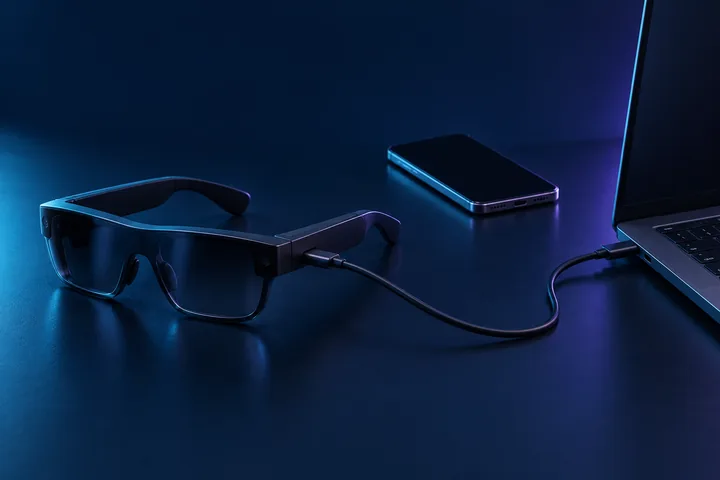 Original HoloNexa editorial illustration. It is not an official product photograph.
Documented compatibility can change with hardware, software and accessory revisions. No hands-on testing is claimed.
Recorded US prices
- VITURE Beast$549 · Price checked: November 2, 2026 · Official price source
- XREAL One Pro$599 sale · regular $649 · Price checked: November 2, 2026 · Official price source
This status applies to the price record only; specifications, compatibility and final availability require separate confirmation.
This research-based guide uses manufacturer documentation for product facts. Evaluation and buying guidance are independent analysis; it is not presented as hands-on testing.
USB-C accessories: verify video output and exact compatibility
These are separate accessories, not complete glasses. Check the exact model and existing bundle contents before buying.
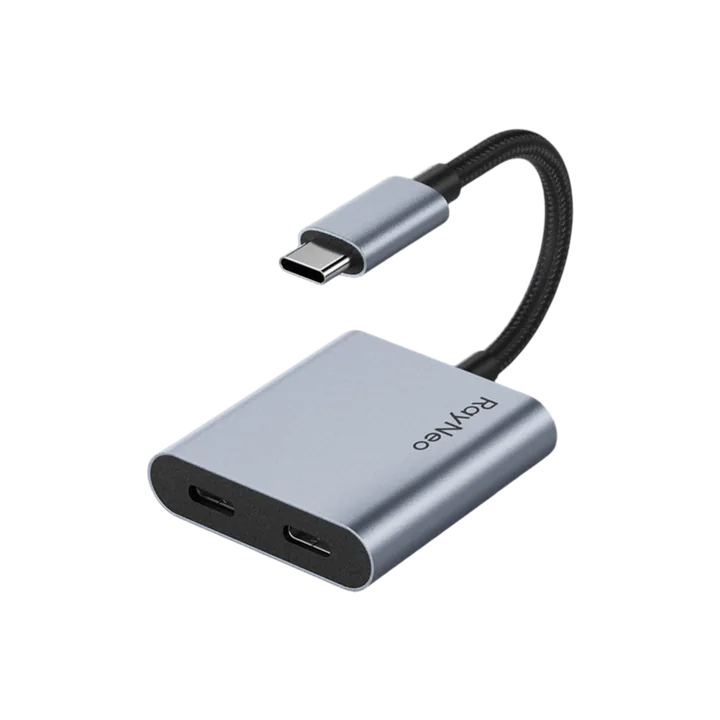
RayNeo USB-C Charging Adapter
$35Price checked: November 2, 2026Official price sourceVideo-capable USB-C source + compatible glasses. Confirm power, cables and regional eligibility.
Details and limitations Check USB-C Charging Adapter — affiliate link HoloNexa may earn a commission from qualifying purchases at no additional cost to you. This is the USB-C adapter only, not the HDMI adapter or a glasses bundle. Confirm video-output support, glasses compatibility, power supply, shipping destination and final total before buying.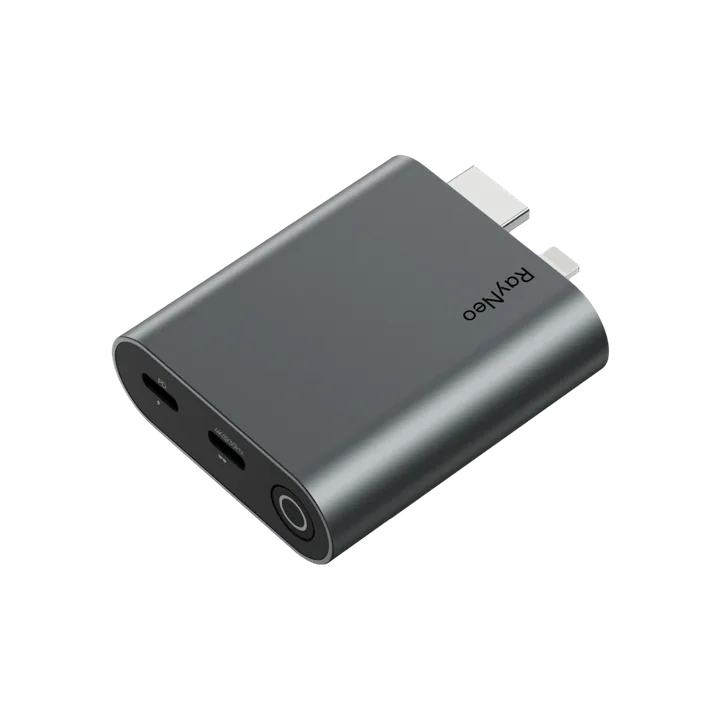
RayNeo HDMI Adapter
$64Price checked: November 2, 2026Official price sourceHDMI source + compatible display glasses; separate Apple adapter needed for Lightning.
Details and limitations Check HDMI Adapter — affiliate link HoloNexa may earn a commission from qualifying purchases at no additional cost to you. This is the HDMI adapter only, not the USB-C charging adapter or a glasses bundle. Confirm video-output support, glasses compatibility, power supply, shipping destination and final total before buying.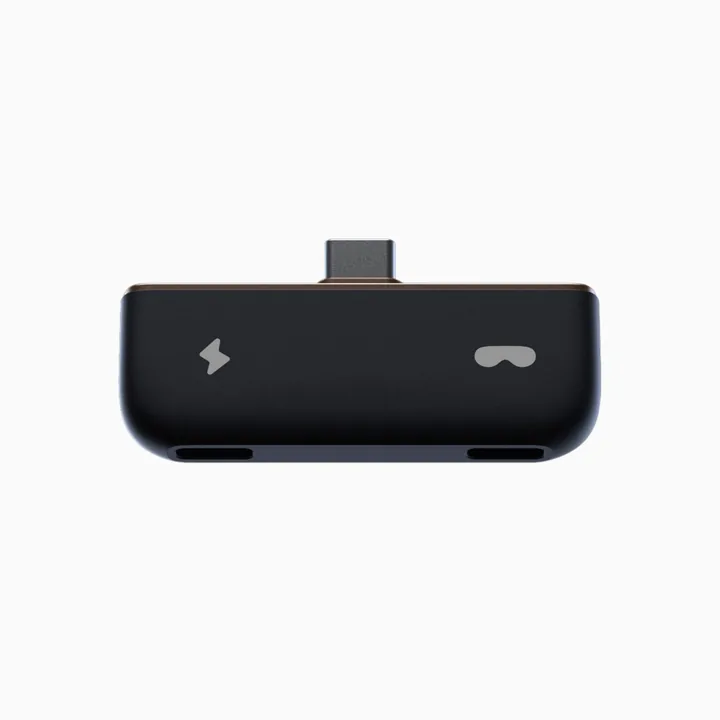
Rokid Mini Hub
$59Price checked: November 2, 2026Official price sourceOfficial source names Rokid Max; Amazon listing also names Air and AR Joy Pack
Details and limitations Check Rokid Mini Hub on Amazon US — affiliate link HoloNexa may earn a commission from qualifying purchases at no additional cost to you. The linked Amazon listing is ASIN B0BQJ5CSMS. Confirm compatibility, seller, package contents and final Amazon price; official-store pricing may differ.Official sources
Specifications, availability and program terms can change. Confirm current information on the linked manufacturer pages.
- VESA: DisplayPort over USB-C FAQ
- XREAL: One Series device connection guide
- Apple: USB-C connections and supported iPhone external displays
- Apple: connecting an iPhone to a display with a cable
- VITURE: XR glasses device compatibility
- VITURE: Beast setup, modes and compatibility limitations
- VITURE: USB-C XR Charging Adapter limitations
- VITURE: USB-C XR Charging Adapter Ultra compatibility
- Apple: Digital AV adapter troubleshooting and HDCP