How to charge your phone while using AR glasses: adapters and setup checks
The short answer: keep a video path and add a charging path
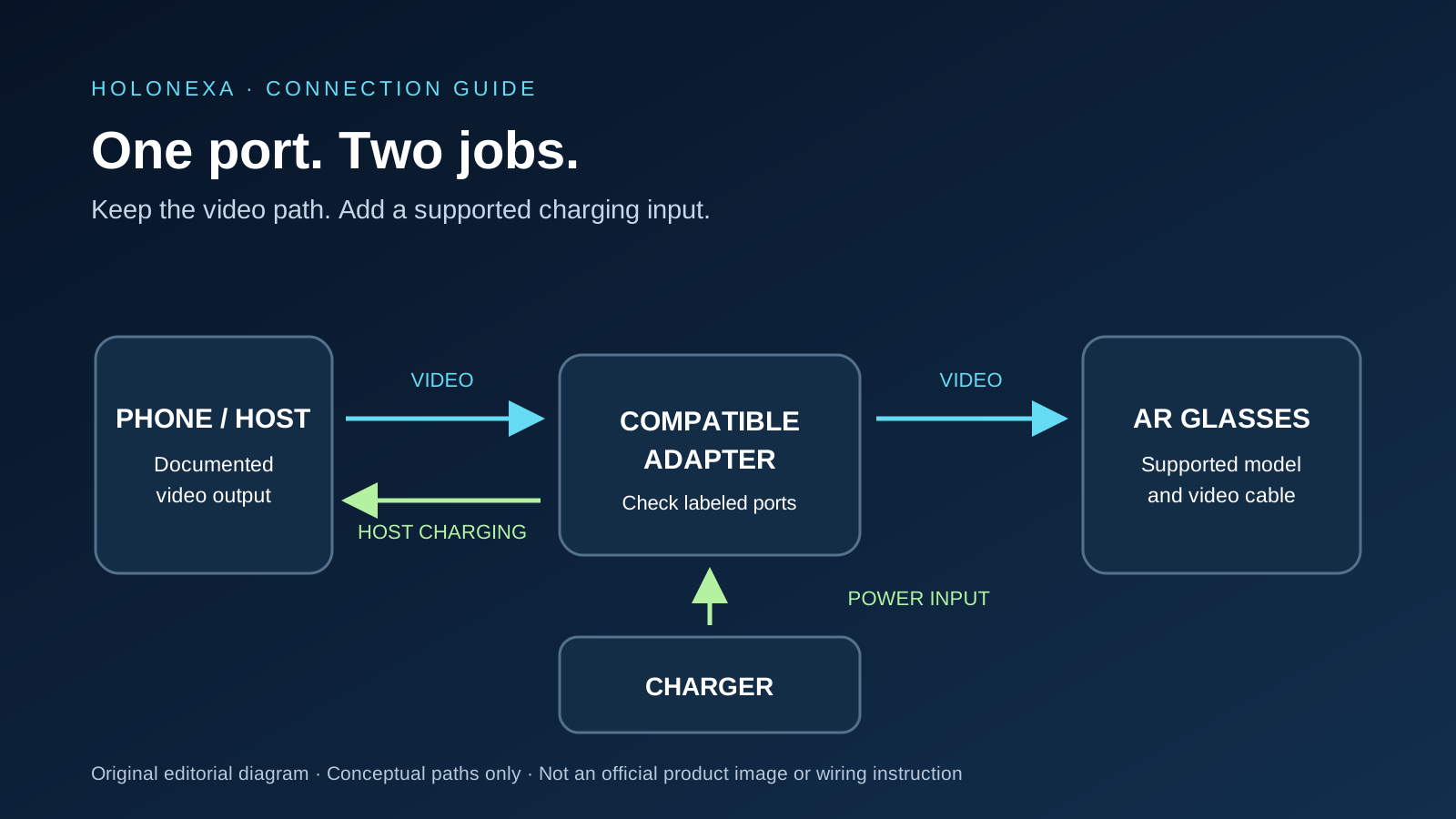
You can charge a compatible phone while using wired AR display glasses if an appropriate adapter supports both tasks together. The source must still provide the video signal that the glasses require. A charging splitter cannot give a phone a video-output capability it does not have.
Start with the exact phone model, glasses model and accessory revision. Then check the adapter's connection diagram: identify the host connection, the glasses video output and the charging input. Those labels are more useful than the number of USB-C sockets on the accessory. This guide concerns tethered display glasses, rather than every camera-enabled or standalone smart-glasses product.
First confirm that direct connection works
Before buying a hub, connect the glasses directly with the supplied cable to a supported source. RayNeo's GT-series documentation requires DisplayPort over USB-C for direct use and explicitly excludes charging-only and data-only ports. XREAL's One-series instructions likewise require DP output and a 5V/1A power supply from the source.
If the direct connection produces no picture, establish compatibility first. Read the specifications for the particular port, not just the device's marketing name. For a laptop with several USB-C ports, check each port's documented functions. Ask the manufacturer whether that model can send DisplayPort video to an external display.
If direct video already works, you have a useful baseline. Add only the charging adapter next, following its instructions, and observe whether video still works. Add the specified power supply after that if the instructions permit this order. Change one part at a time so a failure has a smaller set of possible causes.
Why a USB-C hub can charge successfully but show no image
VESA defines DisplayPort Alt Mode as a way to carry DisplayPort audio and video over USB-C. The interface can combine video, USB data and power in supported implementations. That standard describes what compatible hardware can implement; it does not mean every USB-C socket implements all those functions.
For a purchase, look for explicit video output through the USB-C port intended for the glasses. A hub advertising HDMI output for a desk monitor has not necessarily documented USB-C video output for glasses. A USB-C socket marked PD may be the charger's input, rather than a display output. Follow the accessory's own diagram instead of experimenting with interchangeable-looking sockets.
Keep the cable in the checklist. XREAL recommends its included cable and specifies a full-featured replacement capable of DP video transmission. A cable working for charging is not sufficient evidence that it will carry the display signal.
Read charging wattage as an accessory specification
RayNeo advertises its USB-C Charging Adapter with simultaneous charging up to 100W and video output up to 4K at 60Hz. Those are manufacturer specifications for the accessory. They do not establish that your phone will receive 100W or that your glasses will display a 4K image.
Use the adapter's published host and glasses compatibility, and check its charger and cable requirements. Do not choose solely by the largest wattage on the box. For travel, the practical question is whether the complete setup supports your intended viewing session with a stable connection and manageable cable routing. HoloNexa has not measured this adapter's charging performance.
RayNeo's accessory sales page uses broad compatibility language, while its GT support documentation specifically requires a DisplayPort-capable source for the charging-adapter route. Read those together: the support requirement is the check to make before purchasing for a particular phone.
HDMI needs a different connection path
An HDMI source introduces a conversion step. XREAL's current PlayStation and Xbox guidance calls for a powered HDMI-to-USB-C video adapter designed for AR glasses. It explicitly says that a USB-C-to-HDMI adapter used to connect a computer to a monitor does not work in the reverse direction. That guidance is model-specific, so confirm the recommendation for your own glasses.
VITURE's HDMI XR Adapter documentation distinguishes a USB-C socket marked with a glasses icon from one marked for power. It also documents charging the adapter while it is in use. Its Lightning iPhone instructions require additional named accessories to charge the phone as well. Powering an adapter and charging the source phone are separate outcomes; check which one the diagram promises.
For a console or older phone, write down the full route before ordering anything. Include the source's video output, conversion accessory, accessory power supply and glasses connection. A claim that an adapter accepts HDMI does not settle its power requirements or compatibility with every wearable display.
A practical check when adding the charger makes the screen go black
Return to the last working configuration. Remove the added adapter and check direct video again. If the original setup still works, review the added accessory's port labels, supported devices, cable requirements and connection sequence. This narrows the investigation without assuming that the glasses are defective.
Next, compare the actual charger and cable with the adapter's instructions. If a replacement is available, substitute one documented compatible component at a time. Keep a note of whether the failure occurs when the adapter is connected, when external power is added, or only inside one application. These are observations to give support, not a diagnosis of a particular electrical fault.
When asking for help, send the exact source model, glasses model, adapter name, charger specifications and a photo of the connection path. State whether direct connection works and whether the phone indicates charging. A support team can act on that information more readily than on a general report that USB-C does not work.
Questions to settle before buying
Can I use any USB-C splitter? Only buy one whose documentation supports your intended video-and-charging route. Extra sockets alone do not establish that support.
Will a charging adapter make an unsupported Android phone compatible? Not through the ordinary direct DisplayPort route described here. If the source lacks the required output, ask about a separately documented solution rather than assuming a hub supplies it.
Does a higher-wattage charger guarantee faster charging? The rating alone cannot establish what the complete setup will deliver. Confirm the requirements and limits of the source, accessory and cables.
What is the sensible buying order? Verify direct compatibility, choose the documented accessory for that combination, and check the return terms before opening the package. Prefer a short, supported connection chain over accumulating adapters whose combined behavior is undocumented.
Guide details and methodology
All insightsPractical guide
Use AR glasses while charging your phone. Learn which USB-C adapter you need, how HDMI differs, and what to check when the picture goes black.
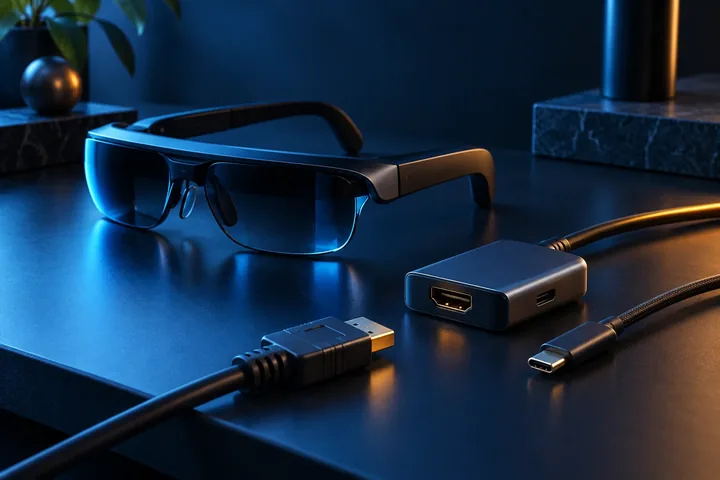
 Original HoloNexa editorial illustration. It is not an official product photograph.
Documented compatibility can change with hardware, software and accessory revisions. No hands-on testing is claimed.
Recorded US prices
- RayNeo USB-C Charging Adapter$35 · Price checked: November 2, 2026 · Official price source
- RayNeo GT Max$429 · Price checked: November 2, 2026 · Official price source
- VITURE Pro 2$299 · Price checked: November 2, 2026 · Official price source
- XREAL One Pro$599 sale · regular $649 · Price checked: November 2, 2026 · Official price source
This status applies to the price record only; specifications, compatibility and final availability require separate confirmation.
This research-based guide uses manufacturer documentation for product facts. Evaluation and buying guidance are independent analysis; it is not presented as hands-on testing.
Official sources
Specifications, availability and program terms can change. Confirm current information on the linked manufacturer pages.
- VESA — DisplayPort over USB Type-C standard background (September 22, 2014); checked October 19, 2026
- RayNeo — GT-series connection and power requirements; checked October 19, 2026
- RayNeo — USB-C Charging Adapter manufacturer specifications; checked October 19, 2026
- XREAL — One-series device connections and cable requirements; checked October 19, 2026
- XREAL — powered HDMI connection and adapter direction for 1 Pro+; checked October 19, 2026
- VITURE Academy — HDMI XR Adapter power, port labels and Lightning connections; checked October 19, 2026