AR glasses HDMI adapter guide: PS5, Xbox and PC setup
Which HDMI adapter do AR glasses actually need?
For a console or computer with HDMI output, look for an HDMI-input-to-USB-C-video-output adapter explicitly supported by your glasses manufacturer. A familiar USB-C-to-HDMI laptop dongle performs the opposite job. XREAL makes that distinction directly in its PlayStation and Xbox instructions for 1 Pro+; that page also requires a powered adapter designed for display glasses.
This guide is for buyers assembling an HDMI gaming or desktop setup, rather than phone owners trying to charge during direct USB-C use. It covers how to select a conversion path, what to ask before ordering, and how to isolate a failed connection. We have not tested these combinations. Manufacturer-documented support is identified below; the purchasing workflow and comparisons are HoloNexa analysis.
Who should buy one, and who should skip it?
Consider an adapter when the device you actually want to use has HDMI output and the glasses maker documents a suitable route. XREAL lists an HDMI-to-USB-C connection for One-series glasses with PlayStation, Xbox and HDMI computers. Its direct USB-C route instead requires DisplayPort video output and sufficient power from the source.
Skip the extra converter if a supported direct USB-C connection already meets your needs. Also pause if the seller can confirm only the connector shapes, rather than your exact glasses and source models. Buying an adapter before establishing that support can leave you with several individually functional parts that have never been documented to work together.
Our practical recommendation is to solve one real setup first. A person who wants private console play at home needs a different purchase justification from someone packing a laptop for travel. List where you will sit, where power is available and how the cable will reach you before paying for portability you may not use.
What should you check before ordering?
Write down the complete glasses model, source model, adapter product name and revision. Ask the manufacturer to confirm the HDMI input, USB-C video output, required power supply and included cable. Then ask which resolution, refresh rate and audio path are supported by that exact combination. Keep the answer with the order confirmation so it can guide setup and a return discussion.
Treat a blank specification as an unanswered question. A seller naming PS5 does not by itself confirm every PS5 video option. Likewise, a high refresh-rate claim for glasses does not prove that an intermediate adapter can carry the same mode from a particular console. Choose on documented compatibility rather than the largest number across three separate product pages.
Check return terms and package contents before opening anything. Budget for every missing cable or power supply, but do not assume an accessory with charging in its name charges the source device. The useful question is which component receives power at each socket, not simply how many watts appear in a listing.
How does the PS5 or Xbox connection work?
XREAL’s 1 Pro+ instructions describe the route in four parts: console HDMI output to adapter HDMI input, the adapter’s required power supply, glasses connected to its USB-C video output, and then a picture check after the console is turned on. Use that model-specific sequence as documented; confirm instructions separately for another XREAL generation.
RayNeo’s GT-series support page names PlayStation 5, Xbox Series X|S and HDMI computers as examples for its HDMI-to-glasses adapter. RayNeo’s separate connection explainer explicitly adds a USB-C power supply for its HDMI path. The shorter GT connection steps omit that power step, so read the accessory instructions as well and confirm the requirements for the delivered revision instead of assuming passive operation.
Keep a television or monitor available during initial configuration if you have one. Our advice is to establish that the console produces a working picture there, then change to the documented glasses path. This is a useful comparison observation, not a claim that the television and glasses accept identical signals.
Which console display settings should you verify?
PlayStation documents Settings > Screen and Video > Video Output as the place to inspect the current output signal and change resolution. Its connected-HDMI-device information includes resolution, VRR and HDR details. Sony also provides a 120 Hz output switch and advises turning it off if that setting causes output problems on another display.
Do not interpret those console options as a promise that your glasses chain supports them. Start with a mode explicitly documented for the source, converter and glasses together. Once a stable picture exists, change one supported setting at a time. Record what changed so support can reproduce the result instead of receiving a vague report that gaming does not work.
This article does not recommend a universal Xbox menu setting, HDR mode or refresh rate: those were not verified for every combination. Ask for the documented mode for your hardware. A converter that gets the dashboard onto the display is only the beginning of checking the particular game and audio route you intend to use.
Can the same adapter serve every brand of glasses?
No cross-brand promise follows from a shared USB-C connector. VITURE’s HDMI XR Adapter page restricts its video output to VITURE XR Glasses, says Beast is unsupported, and gives Luma Ultra only partial compatibility. For Luma Ultra it lists mirroring and charging while playing, but excludes several spatial and control functions. It also describes an update required for Luma-series compatibility.
That is a useful buying example: even one manufacturer’s adapter can behave differently across generations. Do not buy this VITURE accessory for RayNeo or XREAL based on the socket alone. Conversely, this guide does not establish that a RayNeo adapter works with VITURE. Get an explicit answer covering your pair, and separate a basic mirrored image from head tracking, brightness control or other software features.
HDMI converter, charging hub or direct cable: which fits?
The direct cable route has fewer components, but only suits a source whose documented USB-C output can drive the glasses. A video-and-charging hub addresses a different problem: retaining an already compatible USB-C video path while adding source charging. An HDMI converter is for a source producing HDMI video. These are three distinct purchasing decisions, even when accessories look similar.
For a laptop with both output types, compare the supported direct route before adding HDMI conversion. For a living-room console, compare the entire glasses setup with continuing to use a television or monitor. A shared screen is preferable when several people need to see the same game; a private wearable display should justify its added setup through your own use, rather than an assumed performance advantage.
For a phone that cannot provide the required video output, neither a charging splitter nor the wrong-direction HDMI dongle establishes a solution. A separately supported player is a different video source, not an upgrade to the phone port. Our USB-C compatibility and simultaneous-charging guides cover those adjacent decisions without treating them as this console-adapter purchase.
What if there is no picture or no sound?
First check the connection against the manufacturer’s diagram: video source, conversion direction, glasses output and the specified power input. Then note whether the problem appears immediately, after adding power, or only after changing a source setting. Our troubleshooting approach is to reduce the number of unknowns rather than buy another accessory on speculation.
For VITURE’s HDMI XR Adapter, the Academy distinguishes the glasses-icon socket from the power-icon socket and permits charging while in use. Those are instructions for that accessory, not a universal port layout. For XREAL 1 Pro+, the console support page specifically suggests the DP audio protocol in the glasses’ Display and Sound menu when sound is missing; do not transplant that menu instruction to unrelated glasses.
If the problem remains, send support the exact models, adapter revision, cable and power-supply details, a connection photo, and the selected source mode. State whether another display works and whether the failure concerns picture, audio or a spatial feature. Stop short of diagnosing a broken port or promising that a firmware update will fix an undocumented combination.
The buying decision: require a supported complete path
Before checkout, you should be able to explain what leaves the source, which accessory converts it, what powers the system and which cable reaches the glasses. If any part remains uncertain, ask the manufacturer before ordering. This is particularly important when a product page lists a whole console family but leaves revision-specific details to a support document.
Our conclusion is conditional: an HDMI adapter can be a sensible accessory for a documented console or PC route, but it is not automatically the right first purchase for every glasses owner. Prefer the simplest supported setup that answers your actual use case. We make no measured latency, visual-quality, comfort or hands-on testing claim, and we have not assigned a winner across brands.
Guide details and methodology
All insightsPractical guide
Choose an HDMI adapter for AR glasses with clear checks for PS5, Xbox and PC connections, power, cable direction and model-specific compatibility.
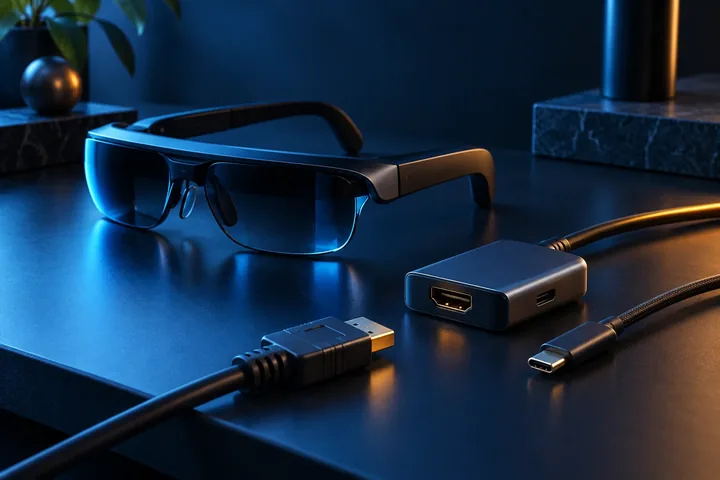 Original editorial illustration, not official product photography
Documented compatibility can change with hardware, software and accessory revisions. No hands-on testing is claimed.
Recorded US prices
- RayNeo HDMI Adapter$64 · Price checked: November 2, 2026 · Official price source
- XREAL One Pro$599 sale · regular $649 · Price checked: November 2, 2026 · Official price source
This status applies to the price record only; specifications, compatibility and final availability require separate confirmation.
This research-based guide uses manufacturer documentation for product facts. Evaluation and buying guidance are independent analysis; it is not presented as hands-on testing.
Official sources
Specifications, availability and program terms can change. Confirm current information on the linked manufacturer pages.
- XREAL One series: device connections — verified October 29, 2026
- XREAL 1 Pro+: PlayStation and Xbox connection — verified October 29, 2026
- RayNeo GT / GT Max: official connection instructions — verified October 29, 2026
- RayNeo: connection paths without USB-C DP Alt Mode — verified October 29, 2026
- VITURE Academy: HDMI XR Adapter compatibility and power — verified October 29, 2026
- PlayStation Support: PS5 video output settings — verified October 29, 2026